Run Analysis & Managing Data
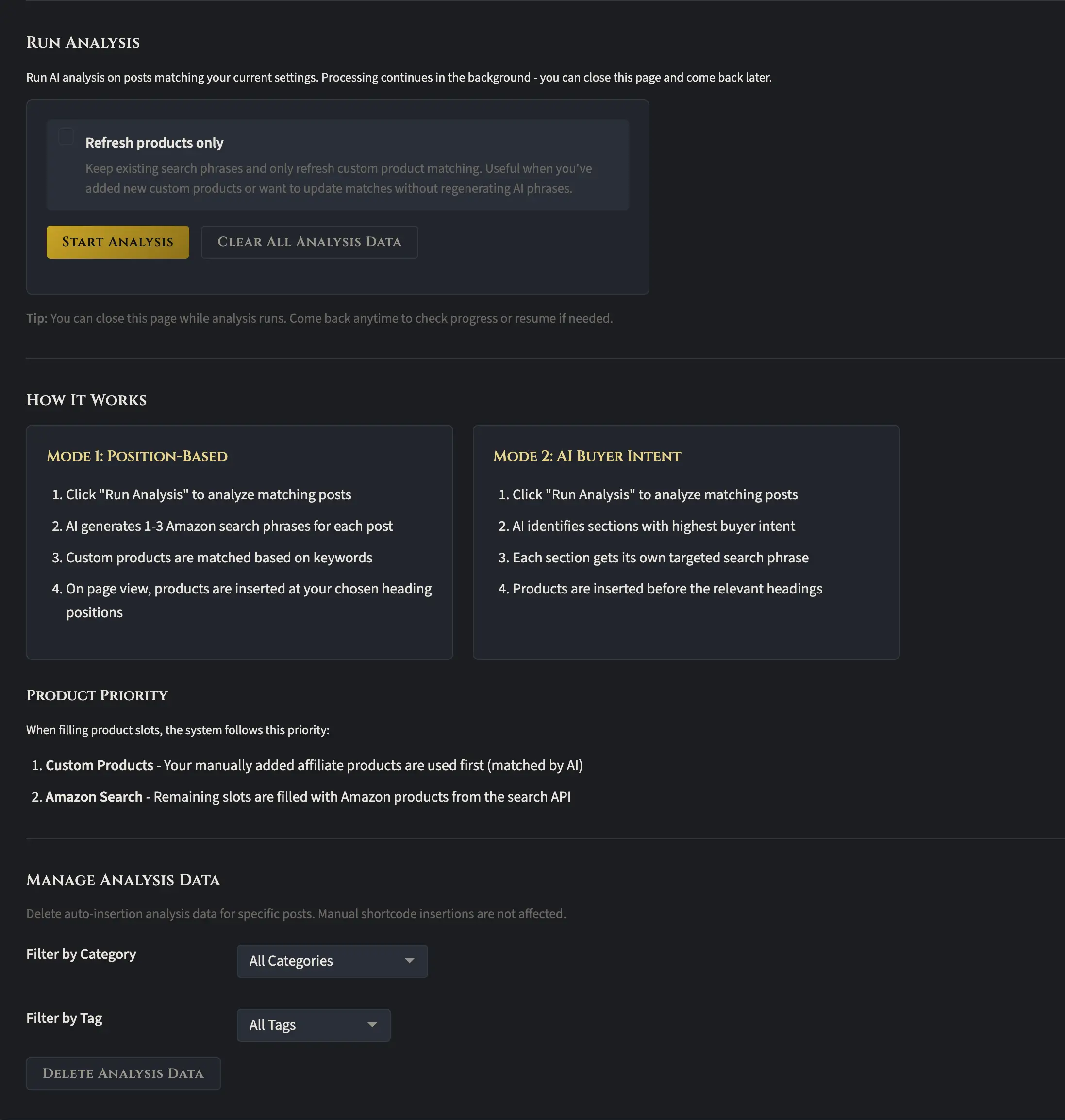
The last section in the auto insertion menu is where you actually kick off the analysis. Once you start it, the process is pretty much set and forget. How long it takes depends on how many articles you have on your site.
Here’s something worth knowing about how this works behind the scenes. WordPress runs on PHP workers, and those workers only stay alive for about 60 seconds at a time. That means someone needs to visit your site to keep the processing going. If nobody’s visiting and you don’t have a cron job set up, the analysis might stall out. So it’s a good idea to just leave your browser window open and let it run to completion. If you’ve got multiple Amazon affiliate sites, you can queue them all up and run the analysis across several sites at the same time without any issues.
At the bottom of this menu, you’ll find the Manage Analysis Data section. This is actually pretty interesting. The analysis data stays attached to each blog post until you manually clear it using the “Clear All Analysis Data” button above. That gives you a lot of flexibility in how you approach things. For example, you don’t have to run the analysis across your entire site all at once. You can run it on one category, then switch to a different category and run it separately, getting product insertions tailored to each group of content. The Manage Analysis Data drop-down also lets you delete analysis data by tag or category, so you can really fine-tune things based on your specific needs and goals.