Additional Settings
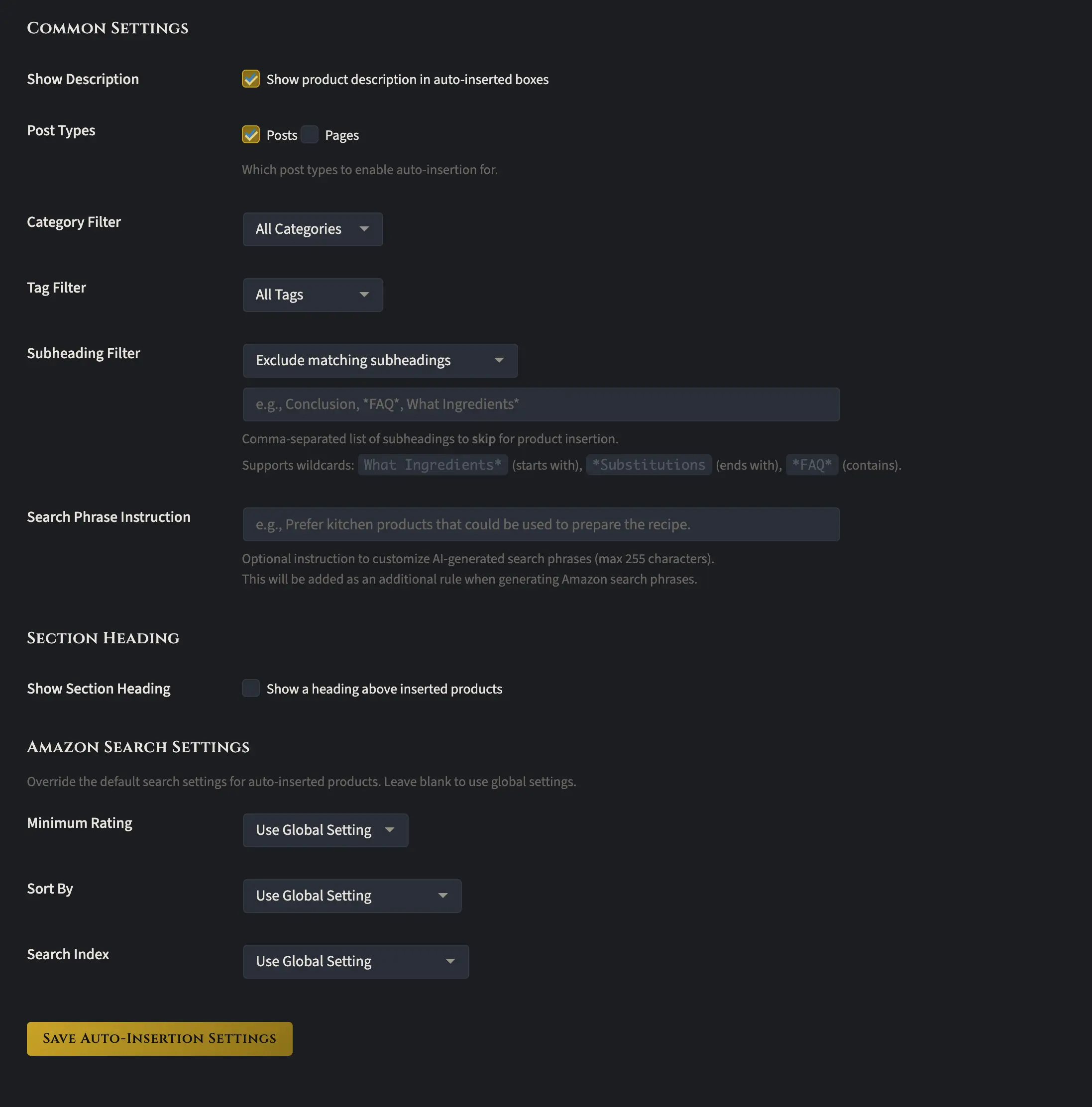
After you choose your mode, there are some additional settings you can pick from, and they’re actually really powerful. I’ll go through each of these one by one so you can better understand what they do.
Show Description
The show description option controls whether the product description appears inside auto-inserted boxes. Auto-inserted boxes use small box mode by default, but they’ll switch to wide box mode when only one product is found. Either way, if this option is unchecked, the product description won’t be shown in either mode.
Post Types
The post types option lets you choose where auto insertion happens. You can have it trigger on posts, pages, or both. Unfortunately, the plugin doesn’t work with custom post types right now. The formatting on those tends to be non-standardized, which makes it tough for the plugin to detect things properly.
Category & Tag Filters
One of the most powerful features for auto-insertion is the ability to filter by category or tag. You can choose specific categories where you want auto insertion to happen, or specific categories where you don’t. Tags work the same way. Maybe some of your blog posts have certain tags and you don’t want auto insertion showing up in those posts. Just select those tags as exclusions. Or flip it around and only include posts with certain tags. These filters give you a ton of control.
Here’s a real-world example. I do a lot of Amazon roundup posts, and I don’t want auto insertions cluttering those up. So I either assign all my roundups to a category called “product reviews” or tag them with a “product review” tag. Then I just set up an exclusion filter on that category or tag, and those posts won’t have any auto insertions. Simple as that.
Subheading Filter
The subheading filter is another option that you’ll probably find yourself using all the time. It allows you to exclude certain subheadings from the auto insertion or limit the auto insertion to only certain subheadings. In addition, you can use an asterisk before a word or after a word to do a match all. Let me give you two specific examples of how I use this:
First, I use this all the time on my Amazon sites, where I specifically exclude my key takeaway section and also my frequently asked question section. When I do that, I do not get any auto insertions in those sections. Now, you might call your section something else. All you have to do is just put those names in there.
The second way I use this is with the asterisk feature to exclude programmatic subheadings. Let me give you an example:
Awhile ago, I made a free course using ZimmWriter on how to build a recipe website. For the blog posts, I used a custom outline, so every recipe had the same outline structure, just with different recipe titles plugged in. I wanted to restrict the insertion to only a couple of very specific subheadings, but the only way I could pull that off was with the asterisk.
Here’s a screenshot from one of the recipe blog posts on that site:
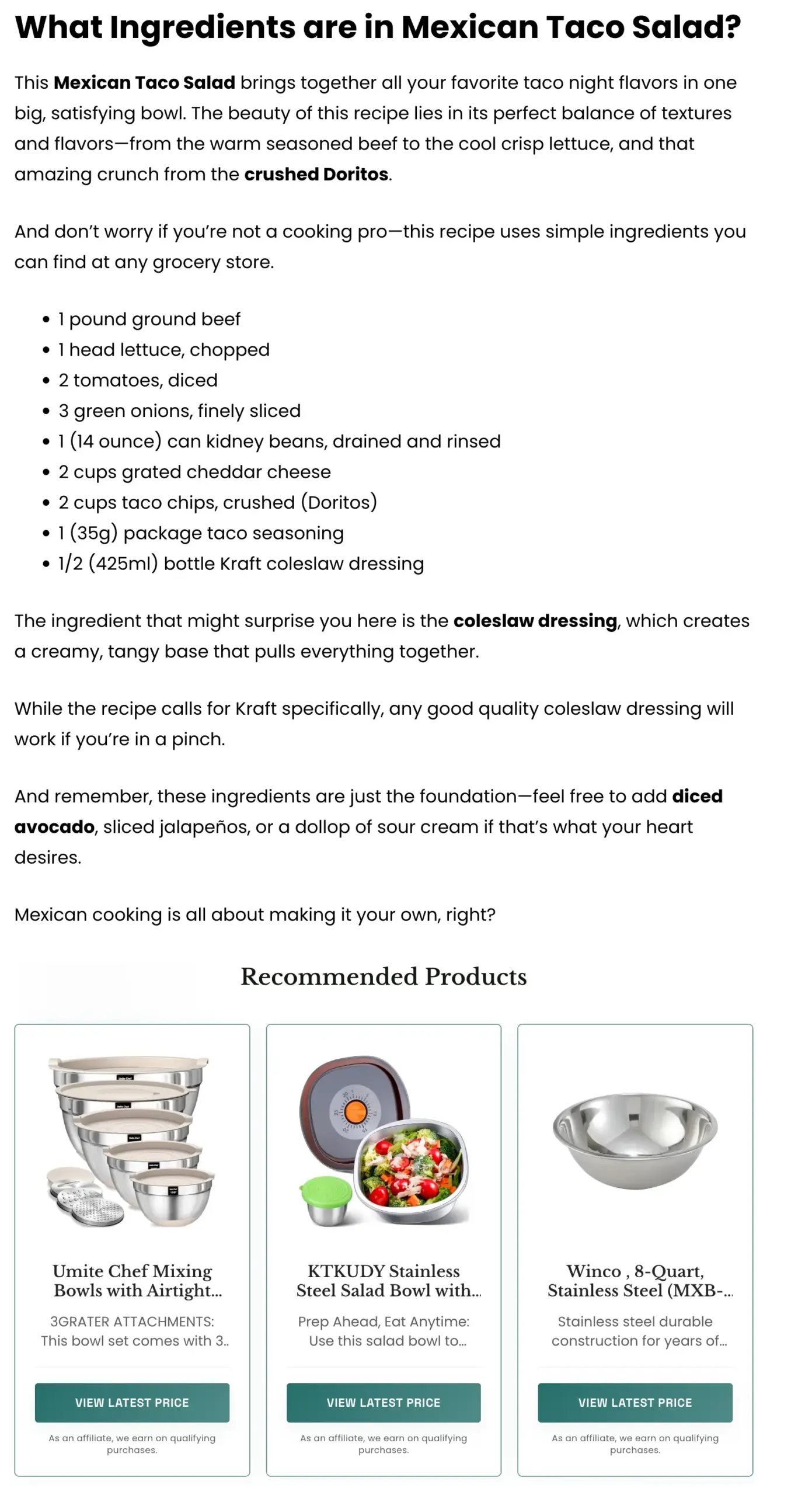
You see that subheading? All my recipe posts on that site have a subheading that starts with “What Ingredients are in…” and then ZimmWriter automatically adds the recipe title at the end.
So to get WP Wolfborn Loot to auto-insert products into that exact subheading across every blog post, I just selected “Only include matching subheadings” for the Subheading Filter and typed in this phrase:
What Ingredients are*
That wildcard asterisk at the end tells the plugin to match any subheading that starts with those words, regardless of what comes after. And just like that, it inserts products into that subheading on every single post!
Search Phrase Instruction
The Search Phrase instruction lets you add optional rules that customize how the AI generates Amazon search phrases. Before we go further, let me quickly explain how this works. When auto insertion is enabled, the plugin feeds portions of your article to the AI, which then generates search phrases. Those search phrases get sent to Amazon to find matching products. The instruction you enter here influences what search phrases the AI comes up with.
I don’t use this on the majority of my sites, but there are times when it comes in handy. For example, on my recipe website, I direct the AI to prefer kitchen products that can be used to prepare the given recipe. You’ll have to use your own judgment to decide whether this makes sense for your site and content. It’s not something you need by default, but for certain niches, it can really help steer the product recommendations in the right direction.
Section Heading
If you check this box, the plug-in will add a heading above the auto-inserted products. See the phrase “Recommended Products” in the image above? That’s the section heading.
By default, the heading text is “Recommended Products,” but you can customize it to whatever you want. You can also choose how it’s displayed: as a paragraph tag, an H3, H4, or H5. I personally just leave it as a paragraph tag.
Amazon Search Settings
The Amazon search settings section allows you to override the default search settings for auto-inserted products. You can specify the minimum rating you want to be used for finding products. Some products on Amazon don’t even have a rating, though, so if you specifically want rated products, you can set a minimum. Your options are default (no stars), three plus stars, or four plus stars.
You can also set a sort order. Some of the choices include:
- Relevance
- Featured
- Average customer review
- Newest arrivals
- High price
- Low price
Finally, there’s the search index dropdown, which I actually find pretty useful. If your website is in a specific niche, like home and garden, and all your articles are going to be about that topic, setting the search index to “home and garden” will limit the products returned to that category.