Templates
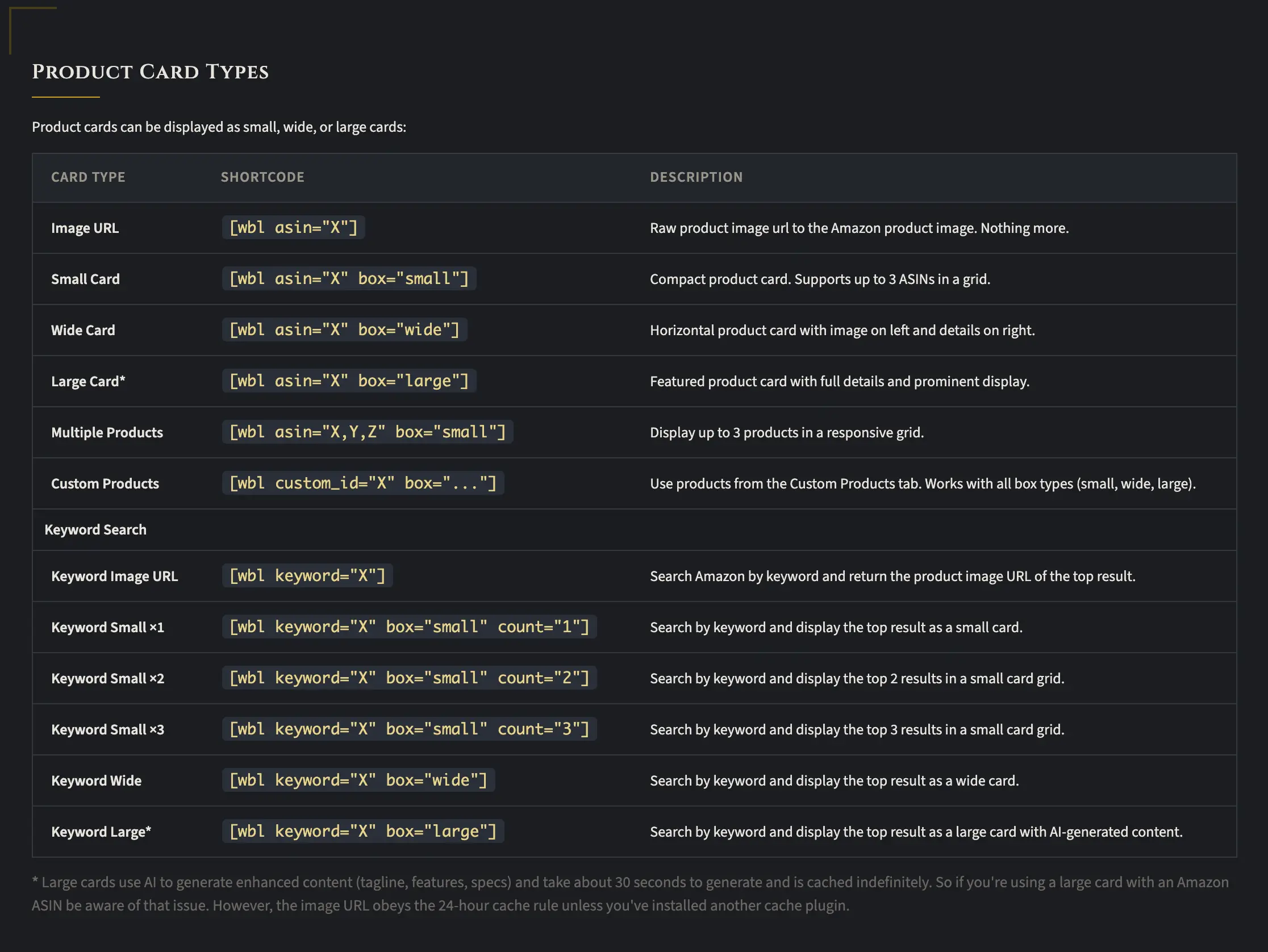
The first section in the Templates tab walks you through the different product card types you can use across your website. There are two main types.
Specific Product Cards
The first type lets you specify an actual product, either by entering an Amazon ASIN or a custom product ID for a product you’ve manually added to the plugin. For each of these, you can choose a box size: small, wide, or large. If you go with a small box, you also get the option to add up to three ASINs or product IDs to create a single row with three columns.
Keyword-Based Product Cards
The second type uses a keyword parameter instead of an ASIN or custom product ID. When you specify one or more keywords, the plugin searches Amazon to find a relevant product and automatically inserts it into that box. If you’re using a small box with the keyword option, you can also set a count variable (one, two, or three) to control how many products show up in that row.
A Note on Large Boxes
One thing to keep in mind: large boxes that pull data from Amazon, whether by ASIN or keyword, take about 15 to 30 seconds to generate. That can become a problem if you’re doing this at scale. The caching also works a little differently for large boxes because of how long they take to build. So if you want to stay completely Amazon compliant, large boxes using Amazon data might not be the best route. That said, it’s totally up to you. As long as you don’t have any other caching plugins installed on your WordPress site, the plugin should still automatically refresh images every 24 hours.
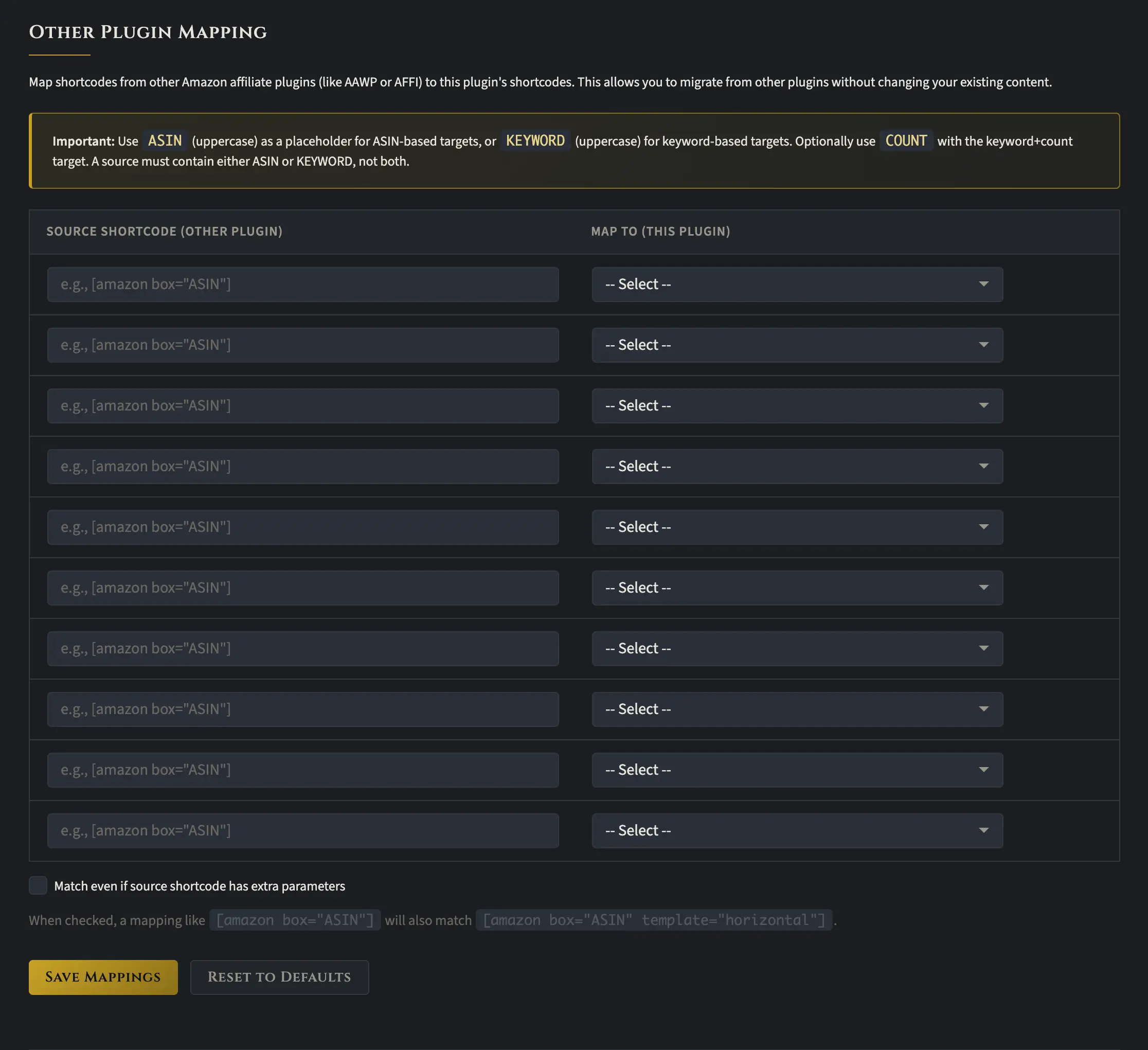
Next up on the template tab is other plugin mapping, and honestly, this is a really cool feature. If you’re currently using another plugin like AFFI or AAWP, there’s a good chance it relies on shortcodes. With this feature, you can take those shortcodes and map them to a specific product box layout in WP Wolf Born Loot. That means you can migrate from another plugin with just a couple of clicks. Pretty seamless.
There is one thing to keep in mind, though. Some of those other plugins offer additional options like displaying prices and other details. Unfortunately, those specific features aren’t available in this plugin. So if those are must-haves for you, it might be worth sticking with whatever you’re already using.
One more thing before you move on. There’s an option at the bottom that says “Match even if shortcode has extra parameters.” This can be really important depending on your setup, so you’ll probably want to check that box and enable it.
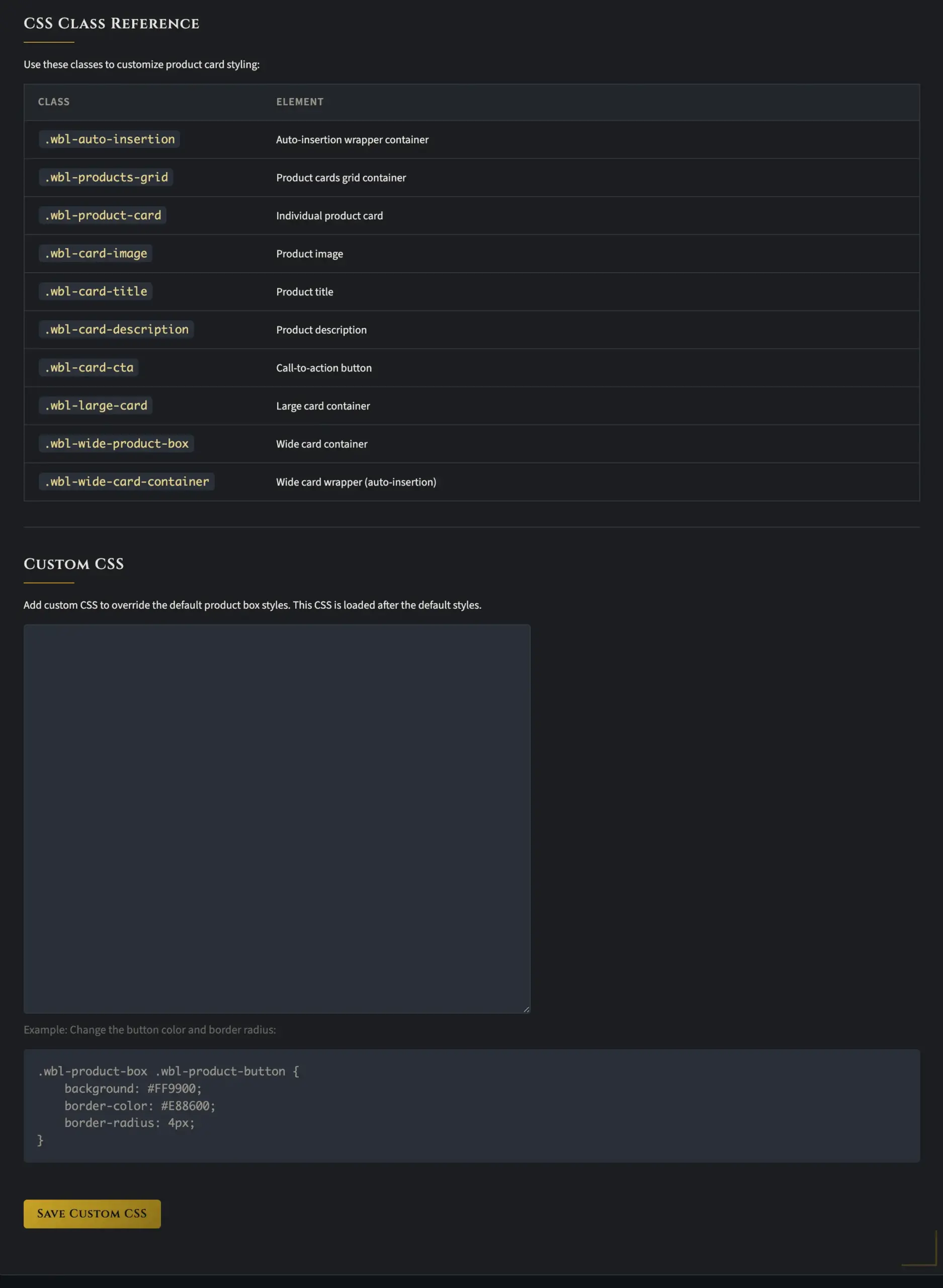
The last section in the templates tab allows CSS styling, along with some info about the CSS that WP Wolfborn Loot uses under the hood. Honestly, I rarely need to touch this across any of my sites. The plugin is already super customizable through the Appearance tab, so it handles most styling needs right out of the box. That said, if you ever run into a situation where you need to fine-tune something further, the options here can help you out.