Cache
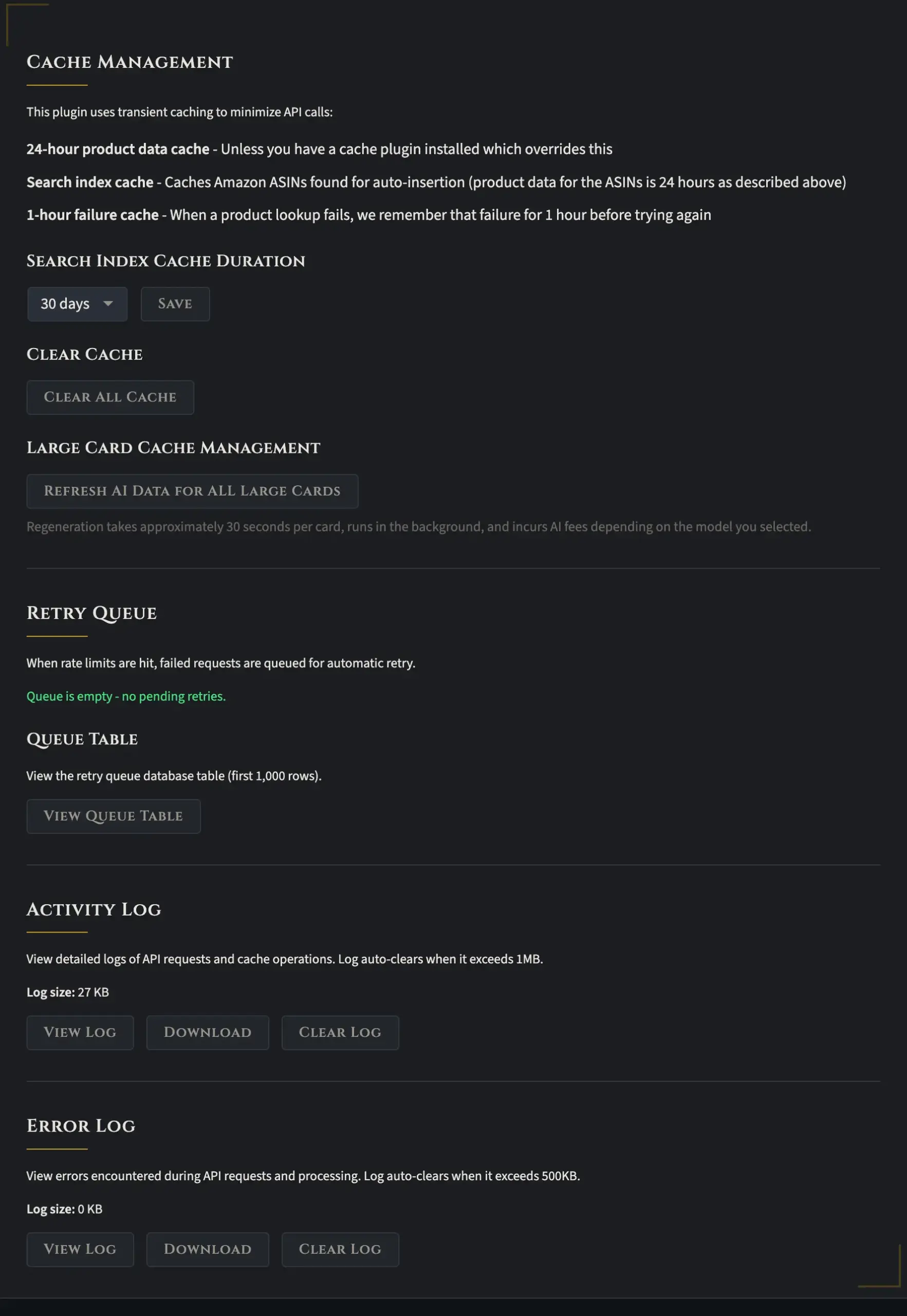
The login cache section is something you probably won’t need to visit often, but it’s good to know what’s there.
Cache Management
The first part covers cache management and explains how caching works to keep you as compliant with Amazon’s Terms of Service as possible. Amazon requires you to refresh all cached data every 24 hours, and that’s exactly what this plugin does.
That said, you might have another plugin that overrides this behavior. For example, if you use LiteSpeed Cache, it turns your pages into static HTML and might cache that data for a week or even four weeks. That’ll definitely cut down on your API queries, but it also means you’re no longer Amazon ToS compliant. Is that something to worry about? That’s up to you. Personally, I don’t display prices alongside my products because Amazon is really finicky about that. As for other data, you’ll have to make your own call.
Search Index Cache Duration
There’s also an option called the search index cache duration, and this one actually has nothing to do with Amazon ToS compliance. Here’s how it works. Auto insertion scans all of your blog posts and generates search phrases, then uses those phrases to search Amazon for matching products. The search phrases themselves never get deleted, but they’re tied to specific ASINs that Amazon returns. Since products can go out of stock or get discontinued, the plugin will periodically refetch new ASINs based on whatever duration you’ve set here. The default is 30 days, meaning every 30 days the old ASINs get cleared out and the plugin goes looking for fresh ones. You can shorten that window if you want, but I find 30 days is more than adequate for my niches.
Clear All Cache
Below that, you’ll find a “Clear All Cache” button if you ever want to wipe everything clean. There’s also an option to refresh the AI data for all large cards. This doesn’t happen automatically, and for good reason. Large cards take a lot of time to refresh. It’s also worth understanding that this plugin doesn’t actually fetch data or generate anything until someone visits the page. Whether you’re using auto insertion or creating a large card, nothing happens until there’s a real page visit. So if you hit that refresh button for all large cards, just know it can take a while.
Retry Queue
The next section is the retry queue, and honestly, you don’t really need to worry about it. The plugin handles it on its own.
Activity & Error Log
Finally, there are the Activity Log and the Error Log. The Activity Log lets you see what the plugin is doing behind the scenes by clicking “View Log.” The Error Log is where you’ll find any issues that pop up.
The most common error you’ll run into is a rate limit from Amazon, especially if you’re using this plugin on multiple WordPress sites. Since those sites don’t communicate with each other, they can easily overlap on API requests. Amazon allows one request per second by default, and that limit scales up to a maximum of 10 requests per second for every $5,000 in revenue your account generates over a rolling 30-day period. If you do hit the rate limit, don’t stress. The plugin will automatically back off and retry on its own.