Choosing a Mode
To use auto insertion, the very first thing you need to do is click the box that says “Enable Auto-Insertion,” as seen below. Once that’s done, you’ll need to choose a mode. There are two available, and the screenshot below explains both clearly, but here’s another explanation.
Mode one feeds your entire blog post to the AI and asks it to come up with search phrases for relevant Amazon products. Since it’s working from the post as a whole, the products should be relevant to your overall topic. That said, they may or may not relate to the specific subheading where they end up, depending on where you tell the AI to place them.
Mode two is more granular. Instead of looking at the post as a whole, it goes through every H2 or H3 subheading individually and finds products that are specifically relevant to each section. So you end up getting hyper-relevant products to the section the buyer would be reading.
Now let’s dig into each mode and its specific options.
Mode 1
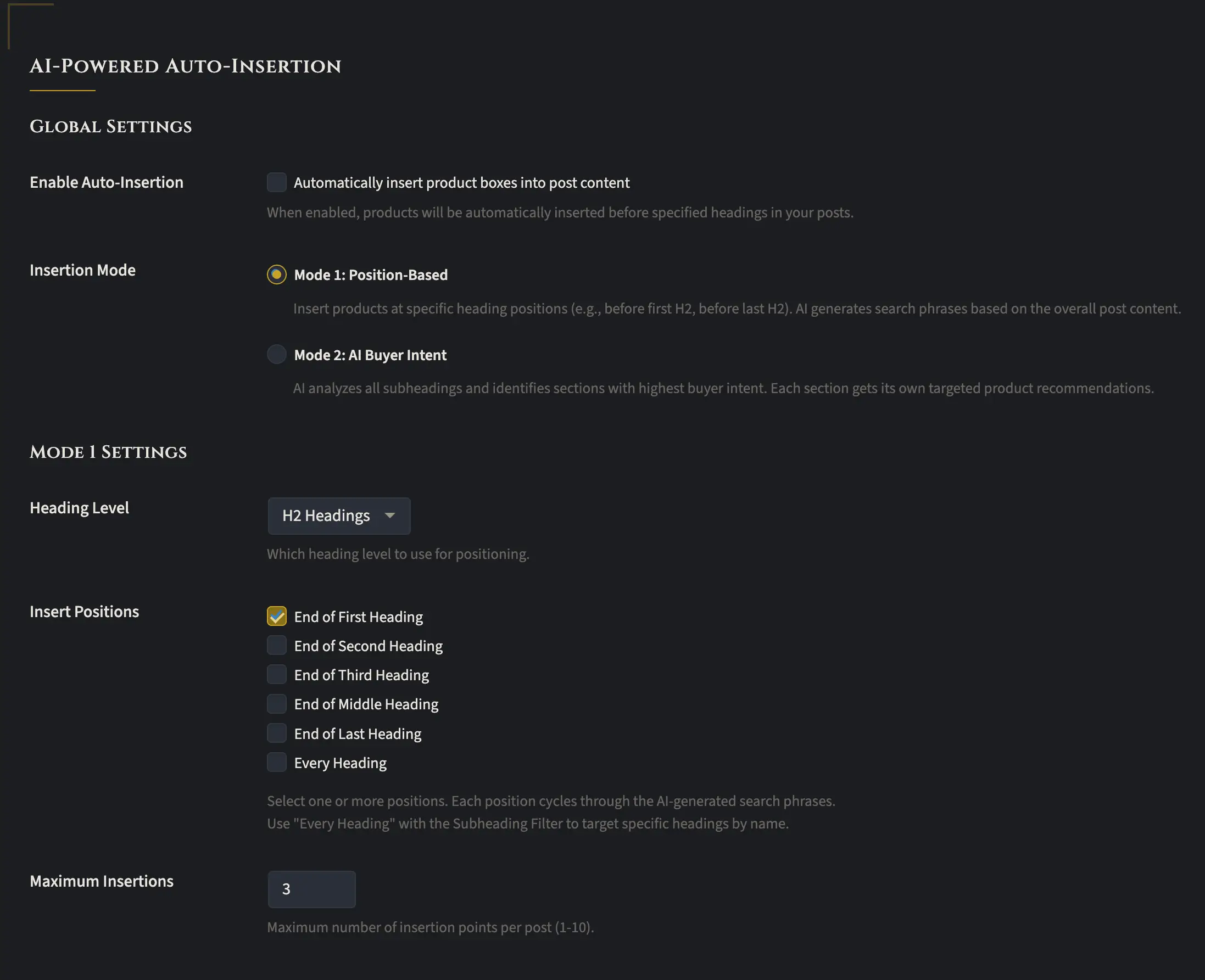
The default is mode one, which feeds your entire blog post to the AI and asks it to generate a few search queries relevant to your content. Those queries are then used to find matching products on Amazon.
Beyond that, you can control exactly where product insertions appear. You pick a heading level (H2 or H3), and then choose the placement: after the first heading, the second, the third, or right in the middle. So if you’ve got ten H2s, the middle option might place an insertion after number four and again at the last subheading.
There’s also an “Every Heading” option, which does exactly what it sounds like. It inserts products after each heading until it hits your maximum. And yes, you can set that maximum number of insertions yourself, so things don’t get out of hand.
Or maybe you’d rather let people read the whole article first before seeing any recommendations. In that case, you can place a single set of three product suggestions at the very end.
Honestly, I don’t really use this mode. It’s arguably faster, but I prefer the more granular approach of mode 2, especially when dealing with listicles. So let’s break down mode 2.
Mode 2
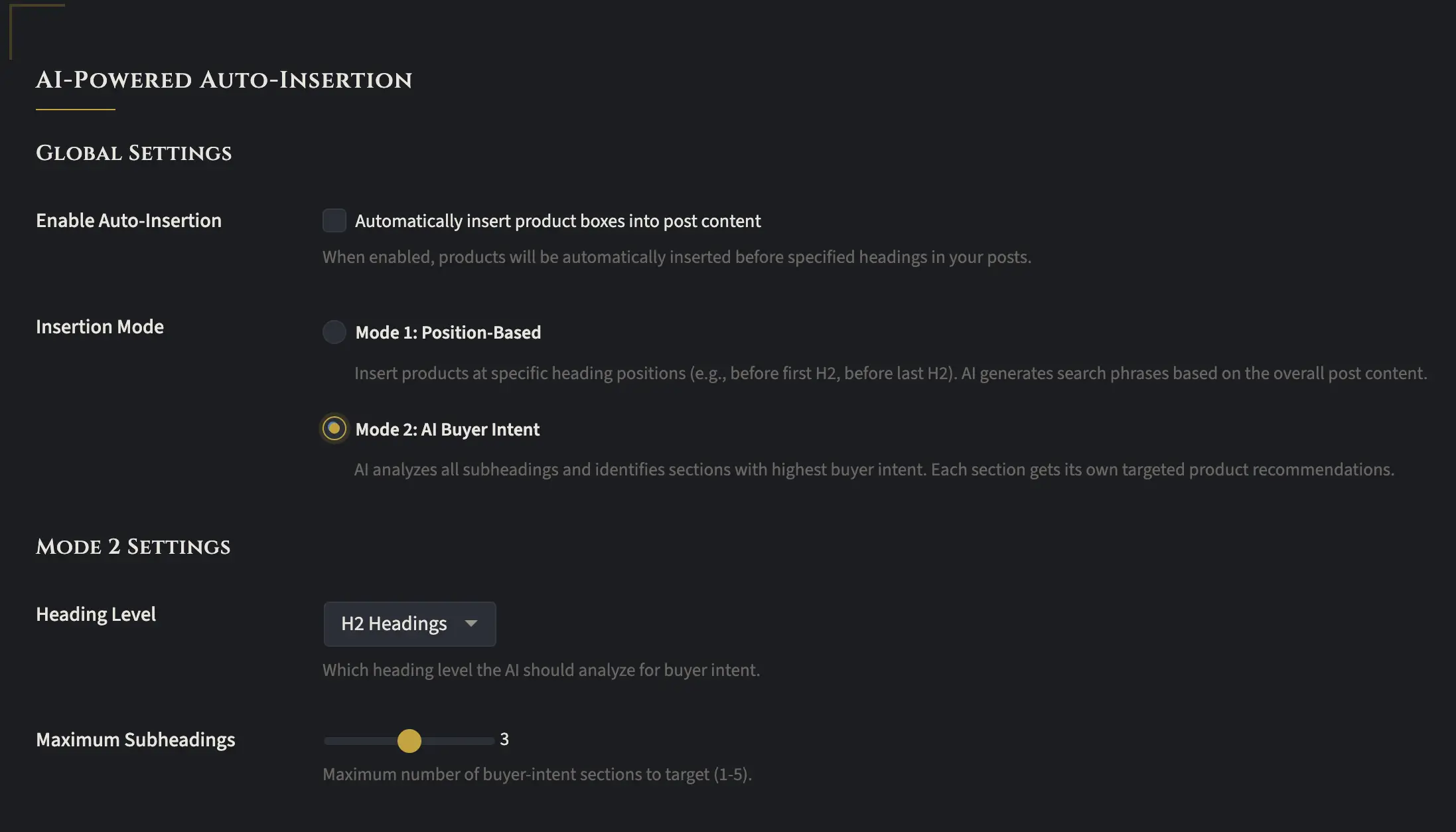
Mode two is where the plugin really shines. In mode 2, the AI scans all of your H2 or H3 sections, looking at both the title and the content within each section. It feeds that information into the AI to determine relevant products and search phrases, then uses those phrases to find matching products on Amazon. The end result is hyper-targeted product recommendations tailored to each specific section.
Now, unlike mode one, you can’t manually specify which subheadings get product insertions. Instead, the AI uses buyer intent and relevance signals to choose the subheadings where product recommendations make the most sense.
You do get control over how many insertions you want, though. The default is three subheadings, but you can dial it down to just one or crank it up to five.
Want to see it in action? Head over to my designeraffair.com site and check out the listicles. Posts like “10 Fresh Spring Kitchen Island Decor Ideas” are great examples. Each one used mode 2 analysis for inserting on the subheadings.
Here is an example:
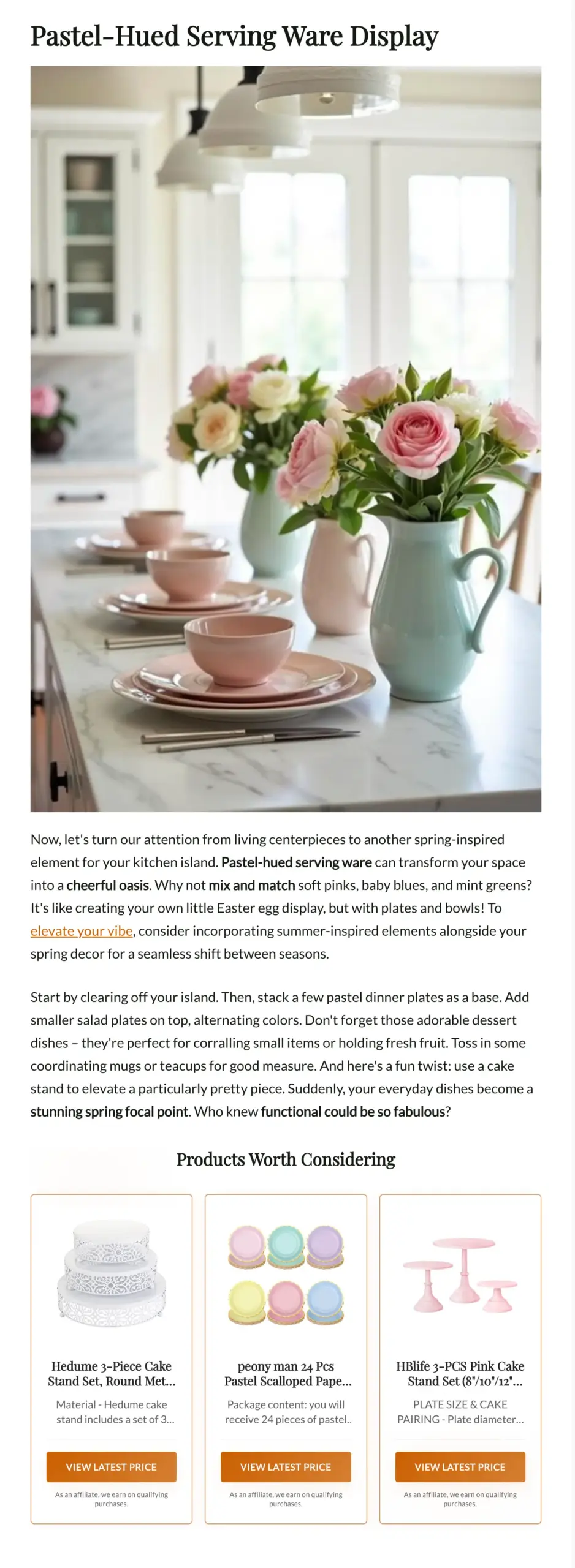
What makes mode two analysis so useful is that it focuses only on the actual content of a section. In the image above, the section is “Pastel-Hued Servingware Display,” and it’s all about how pastel servingware can transform a space into a cheerful oasis. Using mode 2 analysis, the AI finds items that are directly relevant to the content. It’s not pulling from some broader context or guessing at what might fit. It’s working with what’s actually there!